> ## Documentation Index
> Fetch the complete documentation index at: https://mintlify.com/QwenLM/qwen-code/llms.txt
> Use this file to discover all available pages before exploring further.
# JetBrains IDEs Integration
> Use Qwen Code in IntelliJ IDEA, WebStorm, PyCharm, and other JetBrains IDEs via ACP
JetBrains IDEs provide native support for AI coding assistants through the Agent Client Protocol (ACP). This integration allows you to use Qwen Code directly within your JetBrains IDE with real-time AI assistance.
 ## Features
Integrated AI assistant panel within your JetBrains IDE
Full support for ACP enabling advanced IDE interactions
\#-mention files to add them to the conversation context
Access to past conversations within the IDE
Works with IntelliJ IDEA, WebStorm, PyCharm, and more
Full access to your project structure and files
## Supported IDEs
Qwen Code works with JetBrains IDEs that support the Agent Client Protocol:
Ultimate and Community editions
For web development
Professional and Community editions
For Go development
For PHP development
For Ruby development
For C/C++ development
For .NET development
For Android development
Ensure your JetBrains IDE version supports ACP. Check the [JetBrains documentation](https://www.jetbrains.com/help/) for your specific IDE.
## Requirements
* **JetBrains IDE**: Version with ACP support
* **Qwen Code CLI**: Installed globally
* **Node.js**: Version 20 or later
## Installation
Install the Qwen Code CLI globally using npm:
```bash theme={null}
npm install -g @qwen-code/qwen-code
```
Verify the installation:
```bash theme={null}
qwen --version
```
Note the full path to the `qwen` executable:
```bash theme={null}
# On Unix/macOS:
which qwen
# On Windows:
where qwen
```
In your JetBrains IDE:
1. Navigate to the **AI Chat** tool window
2. If not visible, enable it via View → Tool Windows → AI Chat
Configure Qwen Code as an ACP agent:
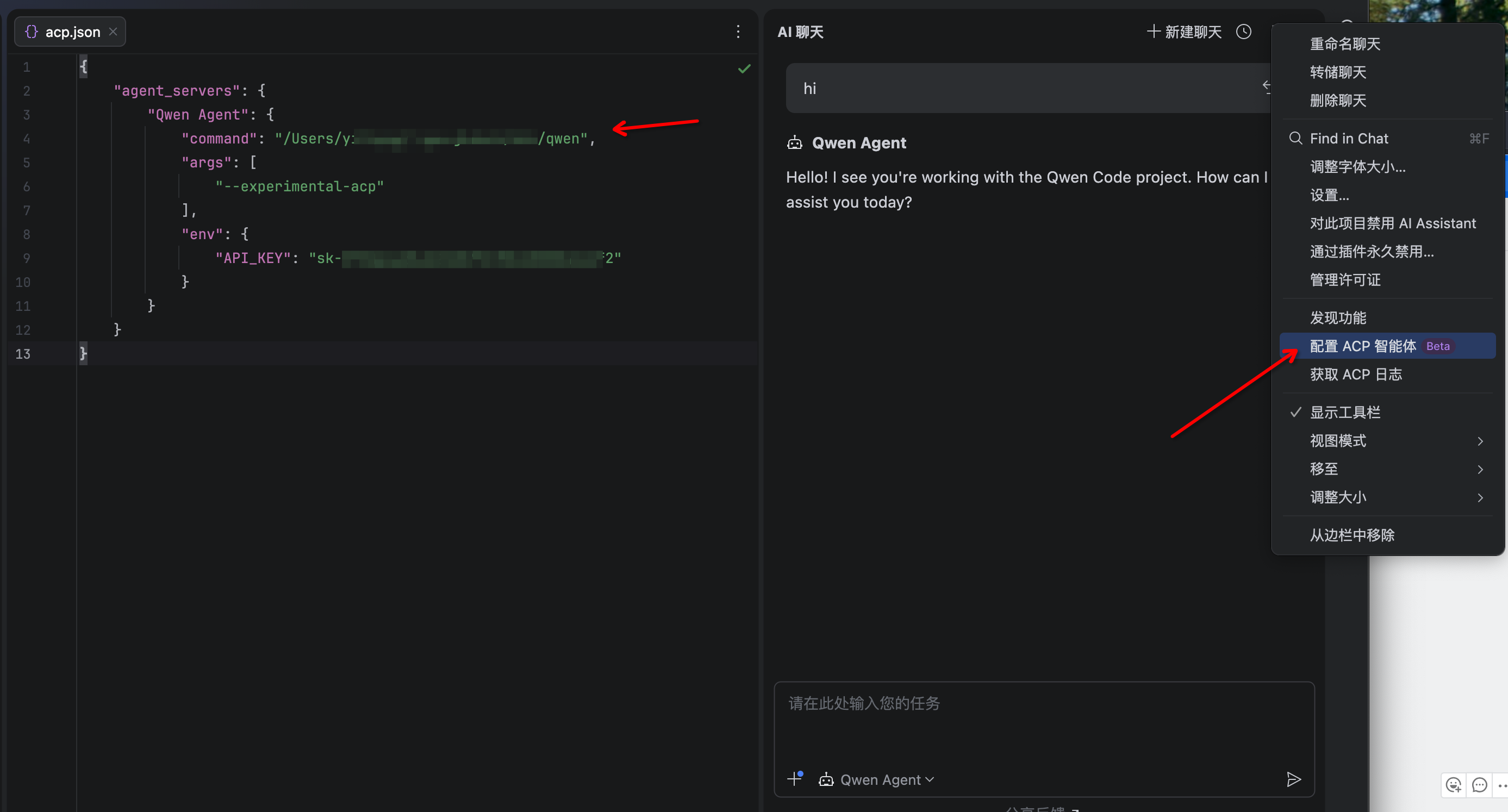
1. Click the **3-dot menu** in the upper-right corner of the AI Chat window
2. Select **Configure ACP Agent**
3. Add the following configuration:
```json theme={null}
{
"agent_servers": {
"qwen": {
"command": "/path/to/qwen",
"args": ["--acp"],
"env": {}
}
}
}
```
Replace `/path/to/qwen` with the actual path from Step 1.
The Qwen Code agent should now be available in the AI Assistant panel. Select it from the agent dropdown and start chatting!
## Configuration Details
### Finding the Qwen Executable Path
```bash theme={null}
which qwen
```
Common locations:
* npm global: `/usr/local/bin/qwen`
* nvm: `~/.nvm/versions/node/v20.x.x/bin/qwen`
* Homebrew: `/opt/homebrew/bin/qwen`
```cmd theme={null}
where qwen
```
Common locations:
* npm global: `C:\Users\\AppData\Roaming\npm\qwen.cmd`
* Node.js: `C:\Program Files\nodejs\qwen.cmd`
### Advanced Configuration
You can add environment variables and custom settings:
```json theme={null}
{
"agent_servers": {
"qwen": {
"command": "/path/to/qwen",
"args": ["--acp"],
"env": {
"QWEN_LOG_LEVEL": "info",
"DASHSCOPE_API_KEY": "sk-xxxxxxxxxxxxx"
}
}
}
}
```
### Qwen Code Settings
The agent reads configuration from:
* **User settings**: `~/.qwen/settings.json`
* **Project settings**: `.qwen/settings.json`
Configure your models and authentication:
```json theme={null}
{
"modelProviders": {
"openai": [
{
"id": "qwen3-coder-plus",
"name": "qwen3-coder-plus",
"baseUrl": "https://dashscope.aliyuncs.com/compatible-mode/v1",
"envKey": "DASHSCOPE_API_KEY"
}
]
},
"security": {
"auth": {
"selectedType": "openai"
}
},
"model": {
"name": "qwen3-coder-plus"
}
}
```
See the [Configuration Guide](/users/configuration/settings) for all options.
## Usage
### Opening the AI Chat
Access the Qwen Code agent:
1. Open the **AI Chat** tool window (View → Tool Windows → AI Chat)
2. Select **Qwen Code** from the agent dropdown
3. Start your conversation
### Using #-mentions
Reference files using the # symbol:
```
#filename to mention specific files
#package to reference packages or modules
```
Example:
```
Explain what #Main.java does
Refactor #UserService to use dependency injection
Add tests for #Button.tsx
```
### Common Tasks
Qwen Code can help with:
**Code Explanation**:
```
Explain the purpose of #DatabaseConnection.java
What does the authenticate method in #AuthService do?
```
**Bug Fixing**:
```
Fix the null pointer exception in #UserController:42
Debug why #payment-processor.ts is failing
```
**Refactoring**:
```
Refactor #LegacyCode.java to use modern Java patterns
Simplify the logic in #complex-function.ts
```
**Testing**:
```
Generate unit tests for #Calculator.kt
Add integration tests for #PaymentAPI
```
**Documentation**:
```
Add JSDoc comments to #utils.ts
Document the API endpoints in #routes.js
```
## Authentication
Configure authentication using the Qwen Code CLI:
```bash theme={null}
qwen
/auth
```
Choose your authentication method:
**Recommended for individual developers**
* Free tier: 1,000 requests/day
* Browser-based login flow
* Automatic credential caching
Run `/auth` and select "Qwen OAuth" to start the browser flow.
**Recommended for teams and custom providers**
Supports multiple providers:
* OpenAI and compatible APIs
* Anthropic (Claude)
* Google Gemini
* Alibaba Cloud Bailian
Configure in `~/.qwen/settings.json` or via environment variables.
See the [Authentication Guide](/users/configuration/auth) for detailed setup.
## Tips & Best Practices
When asking about code, use #-mentions to specify exact files:
Good: "Fix the bug in #UserService.java:156"
Not as good: "Fix the bug in the user service"
Give Qwen context about what you're trying to achieve:
"I'm implementing user authentication. Can you help refactor #AuthController to use JWT tokens?"
Always review Qwen's suggestions before applying them. Use your IDE's diff view to see changes clearly.
Qwen remembers previous messages in the conversation. Use this to iterate on solutions:
1. "Explain how #DataProcessor works"
2. "Now optimize it for large datasets"
3. "Add error handling to the optimized version"
Don't worry about formal syntax. Qwen understands natural language:
"Make this function faster"
"Add logging to track performance"
"What's wrong with this code?"
## Troubleshooting
**Issue**: Can't find Qwen Code in the AI Chat agent dropdown
**Solutions**:
1. Verify Qwen Code CLI is installed:
```bash theme={null}
qwen --version
```
2. Check the agent configuration:
* Ensure the `command` path is correct
* Verify the path points to the `qwen` executable
3. Restart your JetBrains IDE
4. Check IDE version supports ACP
**Issue**: Agent appears but doesn't respond to messages
**Solutions**:
1. Check internet connection
2. Verify authentication is configured:
```bash theme={null}
qwen -p "Hello"
```
3. Review IDE logs for errors:
* Help → Show Log in Explorer (Windows/Linux)
* Help → Show Log in Finder (macOS)
4. Test the CLI directly:
```bash theme={null}
qwen --acp
```
**Issue**: "Authentication failed" or similar errors
**Solutions**:
1. Run authentication setup:
```bash theme={null}
qwen
/auth
```
2. Verify API keys in `~/.qwen/settings.json`
3. Check environment variables in ACP configuration
4. Test with the CLI:
```bash theme={null}
qwen -p "Test message"
```
**Issue**: "Command not found" on Windows
**Solutions**:
1. Use the full path to `qwen.cmd`:
```json theme={null}
{
"command": "C:\\Users\\username\\AppData\\Roaming\\npm\\qwen.cmd"
}
```
2. Use forward slashes or escaped backslashes
3. Verify npm global bin is in PATH:
```cmd theme={null}
npm config get prefix
```
**Issue**: Agent fails to start due to Node.js version
**Solutions**:
1. Check Node.js version:
```bash theme={null}
node --version
```
2. Upgrade to Node.js 20 or later:
* Download from [nodejs.org](https://nodejs.org/)
* Or use a version manager (nvm, n, volta)
3. Reinstall Qwen Code after upgrading Node.js:
```bash theme={null}
npm install -g @qwen-code/qwen-code@latest
```
### Viewing Logs
Access logs for debugging:
**JetBrains IDE Logs**:
* Help → Show Log in Explorer (Windows/Linux)
* Help → Show Log in Finder (macOS)
* Look for ACP-related error messages
**Qwen Code Logs**:
```bash theme={null}
# View recent logs
tail -f ~/.qwen/logs/*.log
# Or on Windows
type %USERPROFILE%\.qwen\logs\*.log
```
## Reporting Issues
When reporting issues, include:
1. **Environment information**:
* JetBrains IDE name and version
* Qwen Code version: `qwen --version`
* Node.js version: `node --version`
* Operating system
2. **Configuration**:
* Your ACP agent configuration (remove sensitive data)
* Relevant parts of `~/.qwen/settings.json`
3. **Error details**:
* Error messages from IDE logs
* Error messages from Qwen Code logs
* Steps to reproduce the issue
4. **Submit to**:
* [Qwen Code Issues](https://github.com/QwenLM/qwen-code/issues)
## Resources
Official JetBrains IDE documentation
Learn about the ACP specification
Full CLI documentation and features
Join the community discussion
## Next Steps
* Learn about [configuration options](/users/configuration/settings)
* Explore [authentication methods](/users/configuration/auth)
* Try the [VS Code extension](/ide-integration/vscode) for a different IDE experience
* Check out the [Zed integration](/ide-integration/zed) for Zed editor users
## Features
Integrated AI assistant panel within your JetBrains IDE
Full support for ACP enabling advanced IDE interactions
\#-mention files to add them to the conversation context
Access to past conversations within the IDE
Works with IntelliJ IDEA, WebStorm, PyCharm, and more
Full access to your project structure and files
## Supported IDEs
Qwen Code works with JetBrains IDEs that support the Agent Client Protocol:
Ultimate and Community editions
For web development
Professional and Community editions
For Go development
For PHP development
For Ruby development
For C/C++ development
For .NET development
For Android development
Ensure your JetBrains IDE version supports ACP. Check the [JetBrains documentation](https://www.jetbrains.com/help/) for your specific IDE.
## Requirements
* **JetBrains IDE**: Version with ACP support
* **Qwen Code CLI**: Installed globally
* **Node.js**: Version 20 or later
## Installation
Install the Qwen Code CLI globally using npm:
```bash theme={null}
npm install -g @qwen-code/qwen-code
```
Verify the installation:
```bash theme={null}
qwen --version
```
Note the full path to the `qwen` executable:
```bash theme={null}
# On Unix/macOS:
which qwen
# On Windows:
where qwen
```
In your JetBrains IDE:
1. Navigate to the **AI Chat** tool window
2. If not visible, enable it via View → Tool Windows → AI Chat
Configure Qwen Code as an ACP agent:
1. Click the **3-dot menu** in the upper-right corner of the AI Chat window
2. Select **Configure ACP Agent**
3. Add the following configuration:
```json theme={null}
{
"agent_servers": {
"qwen": {
"command": "/path/to/qwen",
"args": ["--acp"],
"env": {}
}
}
}
```
Replace `/path/to/qwen` with the actual path from Step 1.
The Qwen Code agent should now be available in the AI Assistant panel. Select it from the agent dropdown and start chatting!
## Configuration Details
### Finding the Qwen Executable Path
```bash theme={null}
which qwen
```
Common locations:
* npm global: `/usr/local/bin/qwen`
* nvm: `~/.nvm/versions/node/v20.x.x/bin/qwen`
* Homebrew: `/opt/homebrew/bin/qwen`
```cmd theme={null}
where qwen
```
Common locations:
* npm global: `C:\Users\\AppData\Roaming\npm\qwen.cmd`
* Node.js: `C:\Program Files\nodejs\qwen.cmd`
### Advanced Configuration
You can add environment variables and custom settings:
```json theme={null}
{
"agent_servers": {
"qwen": {
"command": "/path/to/qwen",
"args": ["--acp"],
"env": {
"QWEN_LOG_LEVEL": "info",
"DASHSCOPE_API_KEY": "sk-xxxxxxxxxxxxx"
}
}
}
}
```
### Qwen Code Settings
The agent reads configuration from:
* **User settings**: `~/.qwen/settings.json`
* **Project settings**: `.qwen/settings.json`
Configure your models and authentication:
```json theme={null}
{
"modelProviders": {
"openai": [
{
"id": "qwen3-coder-plus",
"name": "qwen3-coder-plus",
"baseUrl": "https://dashscope.aliyuncs.com/compatible-mode/v1",
"envKey": "DASHSCOPE_API_KEY"
}
]
},
"security": {
"auth": {
"selectedType": "openai"
}
},
"model": {
"name": "qwen3-coder-plus"
}
}
```
See the [Configuration Guide](/users/configuration/settings) for all options.
## Usage
### Opening the AI Chat
Access the Qwen Code agent:
1. Open the **AI Chat** tool window (View → Tool Windows → AI Chat)
2. Select **Qwen Code** from the agent dropdown
3. Start your conversation
### Using #-mentions
Reference files using the # symbol:
```
#filename to mention specific files
#package to reference packages or modules
```
Example:
```
Explain what #Main.java does
Refactor #UserService to use dependency injection
Add tests for #Button.tsx
```
### Common Tasks
Qwen Code can help with:
**Code Explanation**:
```
Explain the purpose of #DatabaseConnection.java
What does the authenticate method in #AuthService do?
```
**Bug Fixing**:
```
Fix the null pointer exception in #UserController:42
Debug why #payment-processor.ts is failing
```
**Refactoring**:
```
Refactor #LegacyCode.java to use modern Java patterns
Simplify the logic in #complex-function.ts
```
**Testing**:
```
Generate unit tests for #Calculator.kt
Add integration tests for #PaymentAPI
```
**Documentation**:
```
Add JSDoc comments to #utils.ts
Document the API endpoints in #routes.js
```
## Authentication
Configure authentication using the Qwen Code CLI:
```bash theme={null}
qwen
/auth
```
Choose your authentication method:
**Recommended for individual developers**
* Free tier: 1,000 requests/day
* Browser-based login flow
* Automatic credential caching
Run `/auth` and select "Qwen OAuth" to start the browser flow.
**Recommended for teams and custom providers**
Supports multiple providers:
* OpenAI and compatible APIs
* Anthropic (Claude)
* Google Gemini
* Alibaba Cloud Bailian
Configure in `~/.qwen/settings.json` or via environment variables.
See the [Authentication Guide](/users/configuration/auth) for detailed setup.
## Tips & Best Practices
When asking about code, use #-mentions to specify exact files:
Good: "Fix the bug in #UserService.java:156"
Not as good: "Fix the bug in the user service"
Give Qwen context about what you're trying to achieve:
"I'm implementing user authentication. Can you help refactor #AuthController to use JWT tokens?"
Always review Qwen's suggestions before applying them. Use your IDE's diff view to see changes clearly.
Qwen remembers previous messages in the conversation. Use this to iterate on solutions:
1. "Explain how #DataProcessor works"
2. "Now optimize it for large datasets"
3. "Add error handling to the optimized version"
Don't worry about formal syntax. Qwen understands natural language:
"Make this function faster"
"Add logging to track performance"
"What's wrong with this code?"
## Troubleshooting
**Issue**: Can't find Qwen Code in the AI Chat agent dropdown
**Solutions**:
1. Verify Qwen Code CLI is installed:
```bash theme={null}
qwen --version
```
2. Check the agent configuration:
* Ensure the `command` path is correct
* Verify the path points to the `qwen` executable
3. Restart your JetBrains IDE
4. Check IDE version supports ACP
**Issue**: Agent appears but doesn't respond to messages
**Solutions**:
1. Check internet connection
2. Verify authentication is configured:
```bash theme={null}
qwen -p "Hello"
```
3. Review IDE logs for errors:
* Help → Show Log in Explorer (Windows/Linux)
* Help → Show Log in Finder (macOS)
4. Test the CLI directly:
```bash theme={null}
qwen --acp
```
**Issue**: "Authentication failed" or similar errors
**Solutions**:
1. Run authentication setup:
```bash theme={null}
qwen
/auth
```
2. Verify API keys in `~/.qwen/settings.json`
3. Check environment variables in ACP configuration
4. Test with the CLI:
```bash theme={null}
qwen -p "Test message"
```
**Issue**: "Command not found" on Windows
**Solutions**:
1. Use the full path to `qwen.cmd`:
```json theme={null}
{
"command": "C:\\Users\\username\\AppData\\Roaming\\npm\\qwen.cmd"
}
```
2. Use forward slashes or escaped backslashes
3. Verify npm global bin is in PATH:
```cmd theme={null}
npm config get prefix
```
**Issue**: Agent fails to start due to Node.js version
**Solutions**:
1. Check Node.js version:
```bash theme={null}
node --version
```
2. Upgrade to Node.js 20 or later:
* Download from [nodejs.org](https://nodejs.org/)
* Or use a version manager (nvm, n, volta)
3. Reinstall Qwen Code after upgrading Node.js:
```bash theme={null}
npm install -g @qwen-code/qwen-code@latest
```
### Viewing Logs
Access logs for debugging:
**JetBrains IDE Logs**:
* Help → Show Log in Explorer (Windows/Linux)
* Help → Show Log in Finder (macOS)
* Look for ACP-related error messages
**Qwen Code Logs**:
```bash theme={null}
# View recent logs
tail -f ~/.qwen/logs/*.log
# Or on Windows
type %USERPROFILE%\.qwen\logs\*.log
```
## Reporting Issues
When reporting issues, include:
1. **Environment information**:
* JetBrains IDE name and version
* Qwen Code version: `qwen --version`
* Node.js version: `node --version`
* Operating system
2. **Configuration**:
* Your ACP agent configuration (remove sensitive data)
* Relevant parts of `~/.qwen/settings.json`
3. **Error details**:
* Error messages from IDE logs
* Error messages from Qwen Code logs
* Steps to reproduce the issue
4. **Submit to**:
* [Qwen Code Issues](https://github.com/QwenLM/qwen-code/issues)
## Resources
Official JetBrains IDE documentation
Learn about the ACP specification
Full CLI documentation and features
Join the community discussion
## Next Steps
* Learn about [configuration options](/users/configuration/settings)
* Explore [authentication methods](/users/configuration/auth)
* Try the [VS Code extension](/ide-integration/vscode) for a different IDE experience
* Check out the [Zed integration](/ide-integration/zed) for Zed editor users